


Assigning a digital business card
Assigning a digital business card.
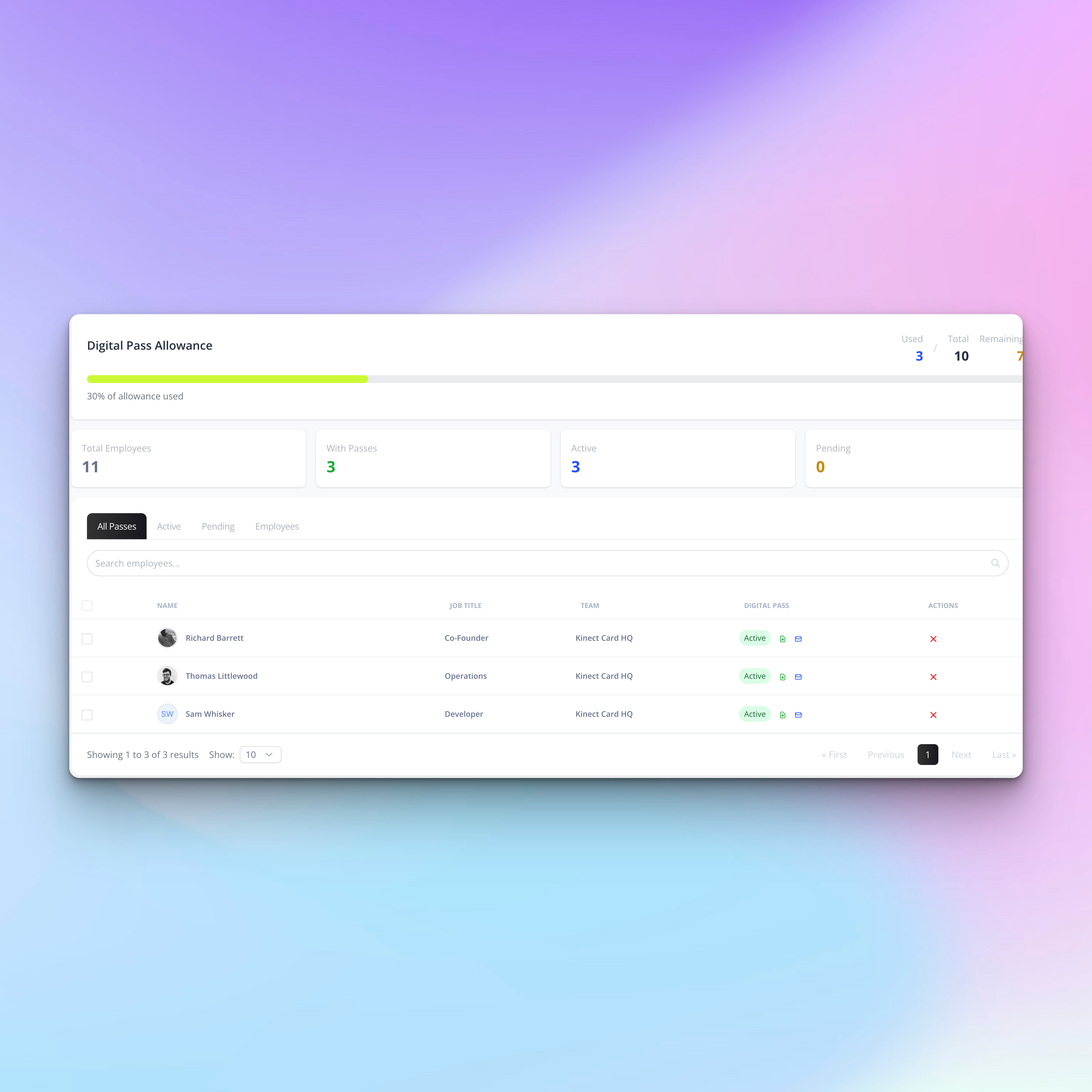
To create and assign a digital business card to a team member you first need to head to Digital Passes from your dashboard menu
Then you will see a couple of different tabs listed as All passes, Active, Pending & Employees.
Click Employees
You will then have a screen like the one below
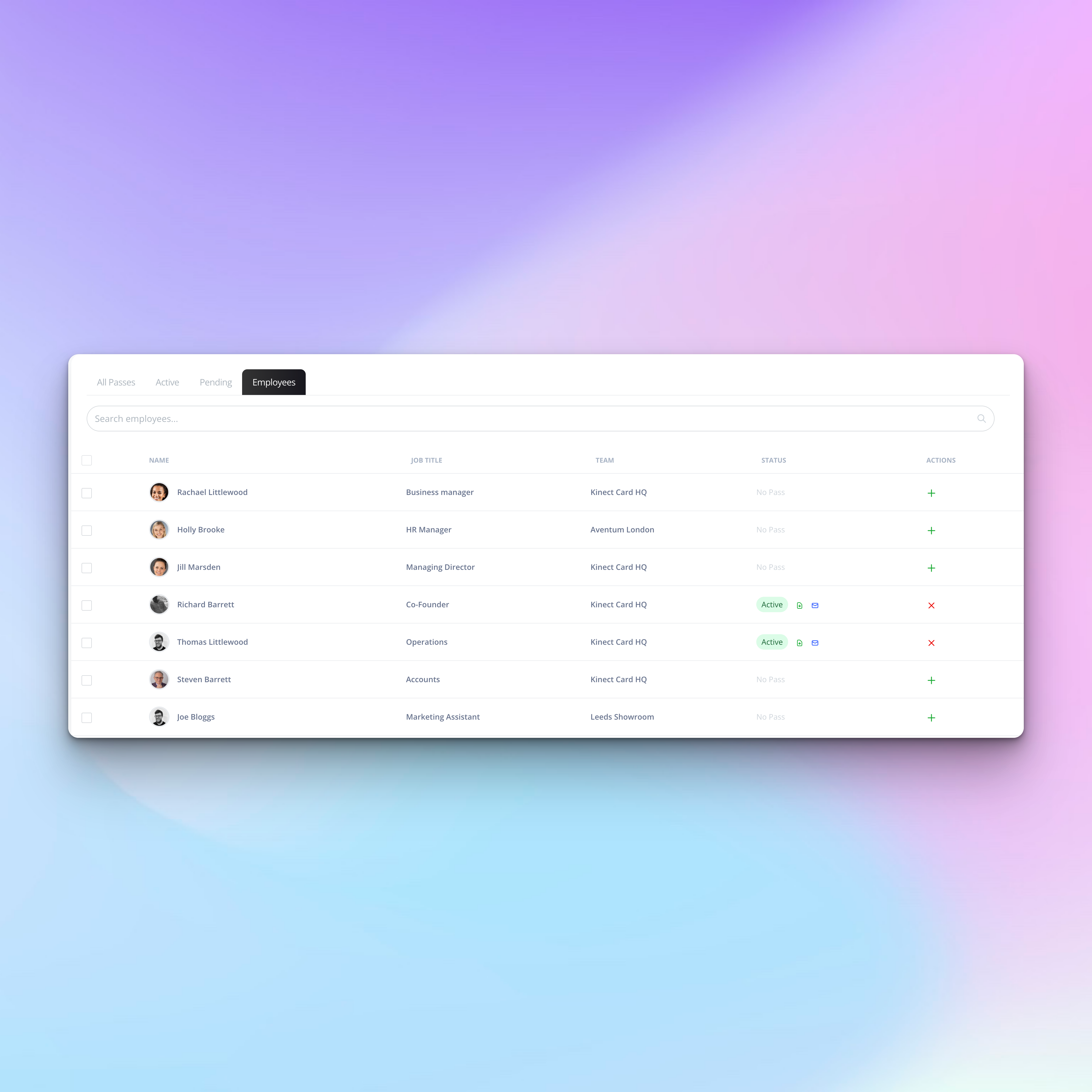
In the right hand column, you will see actions. Simply click the plus symbol and this will create a digital business card for that user.
To create multiple digital business cards at once for your team, use the bulk select tool by selecting all employees & assign digital business card / pass.
From here your team will get an email ready for them to download their digital business card to their device.
💡 Need inspiration
Bring your profile to life with themes
Our themes manager allows you to create branded employee profiles that display when an NFC business card is tapped or a Digital business card is scanned.
This is a great feature for teams with multiple brands, customising your themes for a specific event or even to create themes to showcase your products and services.
Need help creating a theme? Contact our team today!
Still need help?
Get Support
Send our team a message and we will respond within 1 business day. Our opening hours are Monday to Friday 9am - 5pm GMT. For out of hours support, please chat with our AI agent on our web chat facility.