


Activate an NFC Business Card
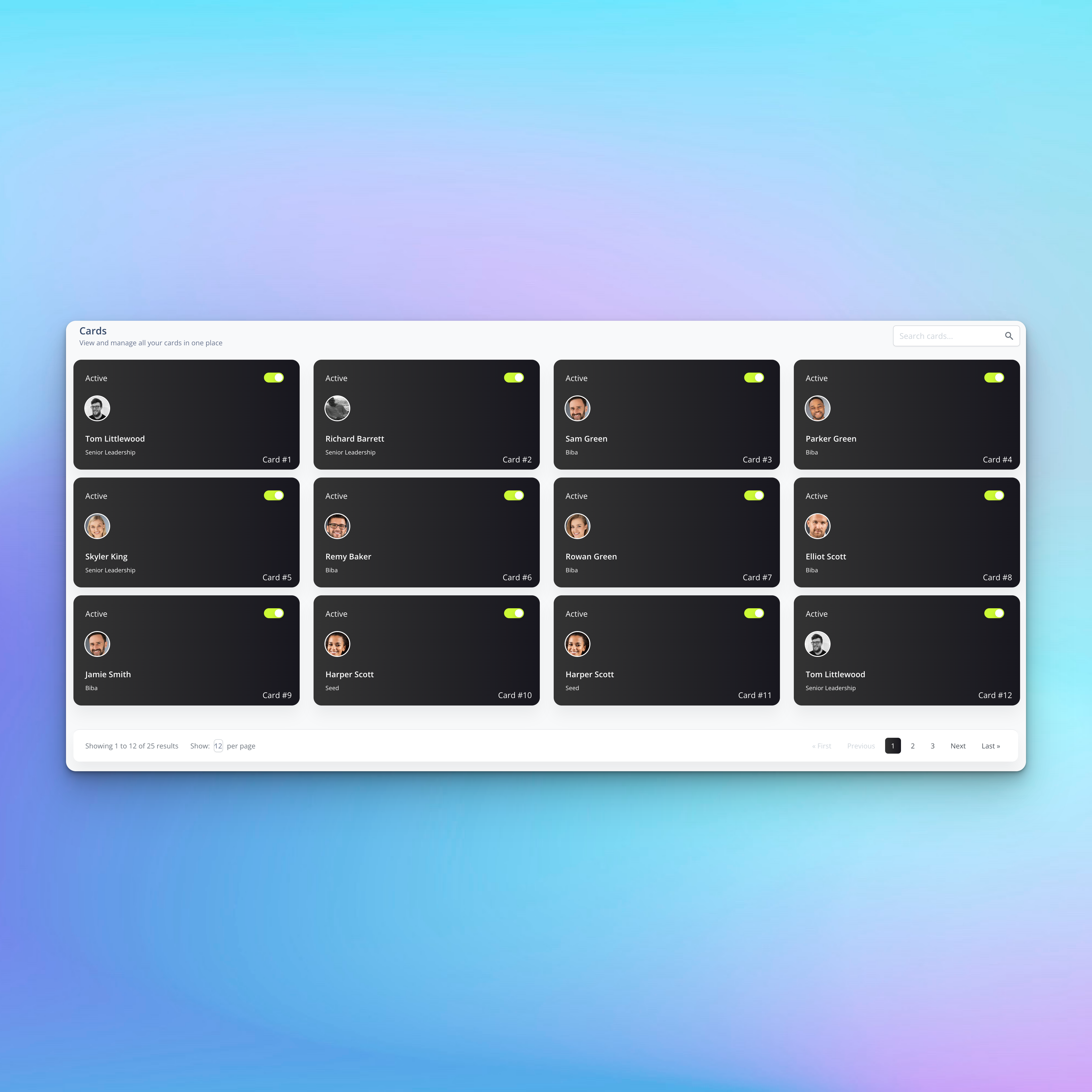
Activating an NFC Business Card
To activate an NFC business card, you’ll need to assign it to an employee.
How to Assign an Employee to an NFC Business Card
- Log in to your Kinect Card portal.
- Go to the Card Dashboard.
- Find the card reference number and match it with the number on your NFC card packaging.
- The reference number appears in the bottom-right corner of each card tile (e.g. #10).
- Click the card tile to open the Card Settings page.
- On the Card Settings page:
You’ll see the card’s unique QR code
Use the Employee dropdown to select the employee you want to assign to this card - Click Update to save the assignment.
Activate the Card
- Return to the Card Dashboard.
- If the card tile is white, click the Active toggle in the top-right corner to switch it on.
- The card tile will turn black, confirming the card is now active.
👉 If the card tile is already black, the card is already active and ready to use.
💡 Last checks to complete
Our Activation Checklist
Before tapping the card, make sure:
- You have created a brand
- You have created a location
- You have created a theme
- Employee profiles have been made
- All employees are assigned to a team
- Team assets have been assigned
- Employee has been assigned to a card
- Card tile is black and active
Once all boxes are checked, the NFC business card is active and ready to use.
Still need help?
Get Support
Send our team a message and we will respond within 1 business day. Our opening hours are Monday to Friday 9am - 5pm GMT. For out of hours support, please chat with our AI agent on our web chat facility.