


Creating a Theme
Creating a Theme
Themes let you customise your employees’ digital business card profiles with your branding.
Free users can apply one theme per team.
Pro users can create unlimited teams, allowing the use of multiple themes.
How to Create a Theme
- Log in to your Kinect Card portal.
- Go to Assets → Themes.
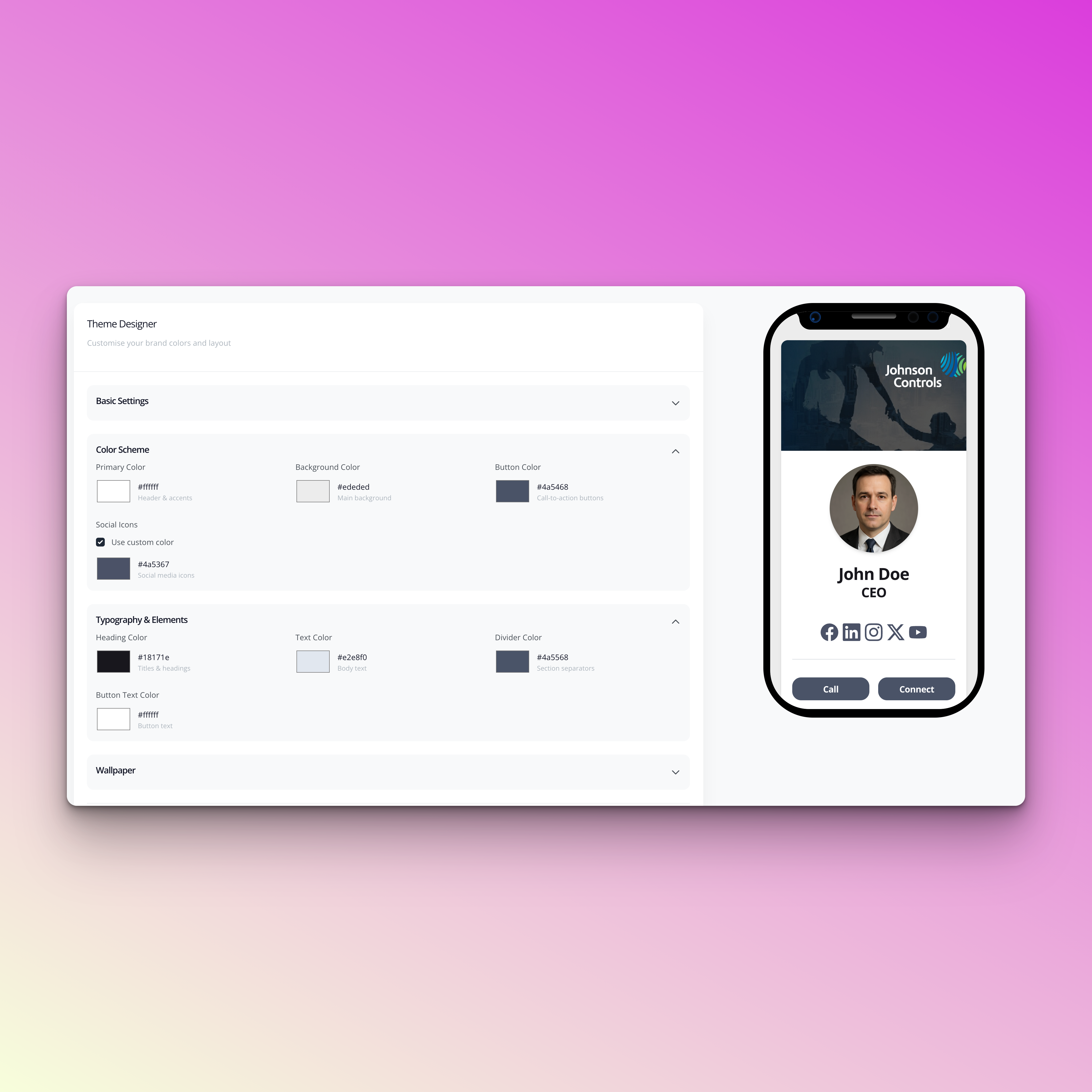
- You’ll see a live preview of your theme, which updates as you make changes.
Customise Your Theme
- Name your theme
This is usually your brand name, but you can choose any name you like. - Choose your colours
Customise:
Text colours
Background colours
Button colours
You can enter colours using:
RGB values
HEX codes
The colour picker tool
Add a Digital Pass Logo (Optional)
- Upload a Digital Pass Logo
If you don’t use digital passes, you can skip this step or contact our team for help.
Recommended format:
Size: 200px × 200px
File type: JPG or PNG
Add a Profile Banner Image
- Upload a Wallpaper / Banner image for your profiles.
Recommended format:
Size: 400px (W) × 200px (H)
Max file size: 10MB
File type: JPG or PNG - Use the zoom controls in the upload box to adjust the image size and position.
- To replace an image, click Remove Logo and upload a new one.
Save and Assign Your Theme
- Once you’re happy with your design, click Save.
- Assign the theme to a team to apply it to employee profiles.
💡 Need inspiration
Bring your profile to life with themes
Our themes manager allows you to create branded employee profiles that display when an NFC business card is tapped or a Digital business card is scanned.
This is a great feature for teams with multiple brands, customising your themes for a specific event or even to create themes to showcase your products and services.
Need help creating a theme? Contact our team today!
Still need help?
Get Support
Send our team a message and we will respond within 1 business day. Our opening hours are Monday to Friday 9am - 5pm GMT. For out of hours support, please chat with our AI agent on our web chat facility.