


Create a Team
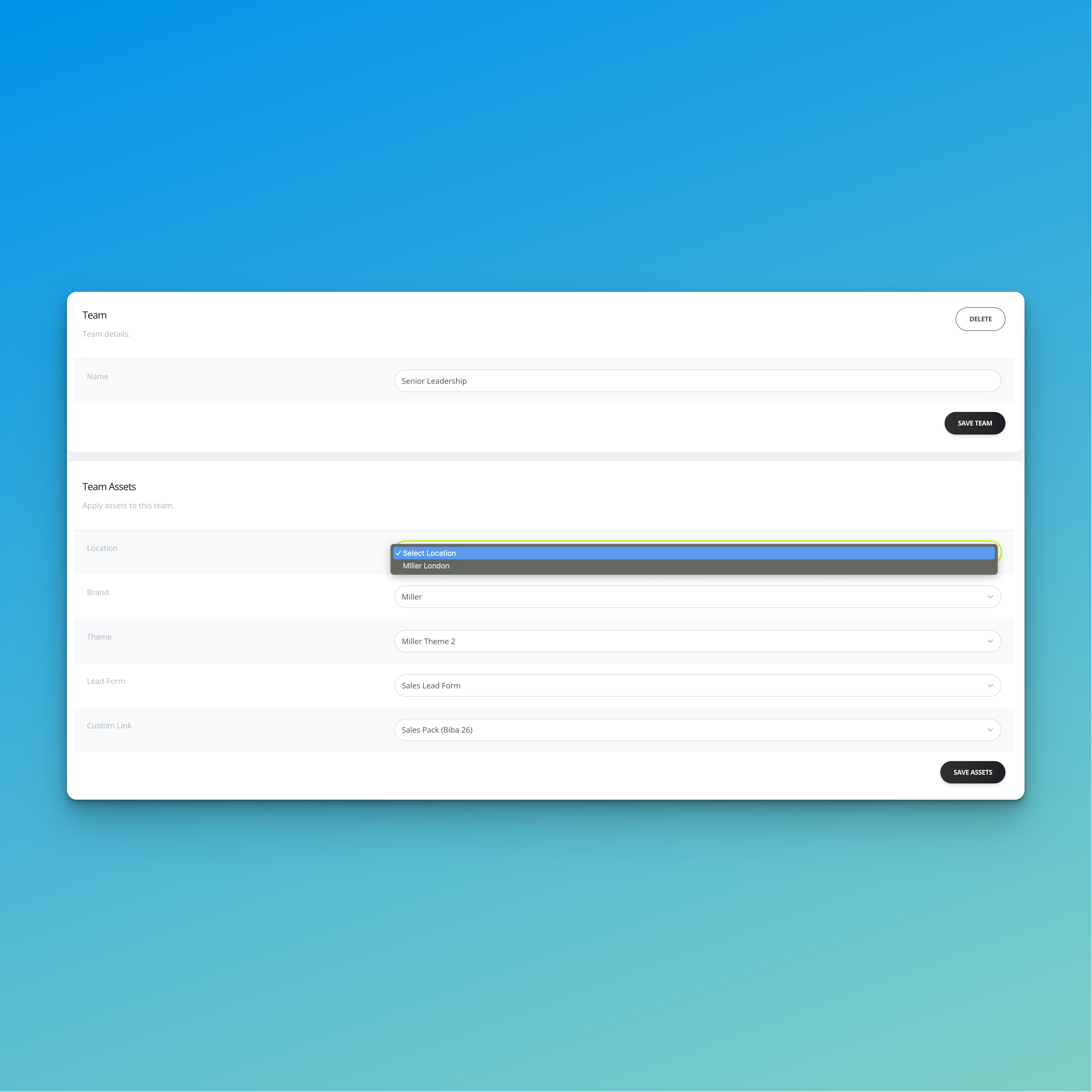
Creating a Team
Teams allow you to group employees together and assign shared assets to them.
This makes it easy to:
- Apply different themes to different departments
- Assign custom links, addresses, and lead forms to specific teams
- Manage multiple brands within the same Kinect Card portal
Example:
Your Sales team can have one theme and set of links, while your HR team uses a different theme and assets. You can also create separate teams for different brands (e.g. Brand A and Brand B).
How to Create a Team
- Log in to your Kinect Card portal.
- Go to Employees.
- Click Teams.
- Select Create Team.
- Enter a team name (e.g. Sales, HR, Brand A).
- Save the team.
Once created, you can assign employees and assets (such as themes, links, and lead forms) to the team.
💡 Best Practice:
Set Up in the Right Order
For the smoothest setup, we recommend creating things in this order:
- Create your assets first
(Themes, links, lead forms, addresses, etc.) - Create your teams
This allows you to assign the correct assets to each team straight away. - Add your employees last
Employees will automatically inherit the assets assigned to their team.
Following this order saves time and avoids having to reassign assets later.
Still need help?
Get Support
Send our team a message and we will respond within 1 business day. Our opening hours are Monday to Friday 9am - 5pm GMT. For out of hours support, please chat with our AI agent on our web chat facility.