


Assign your assets to a team
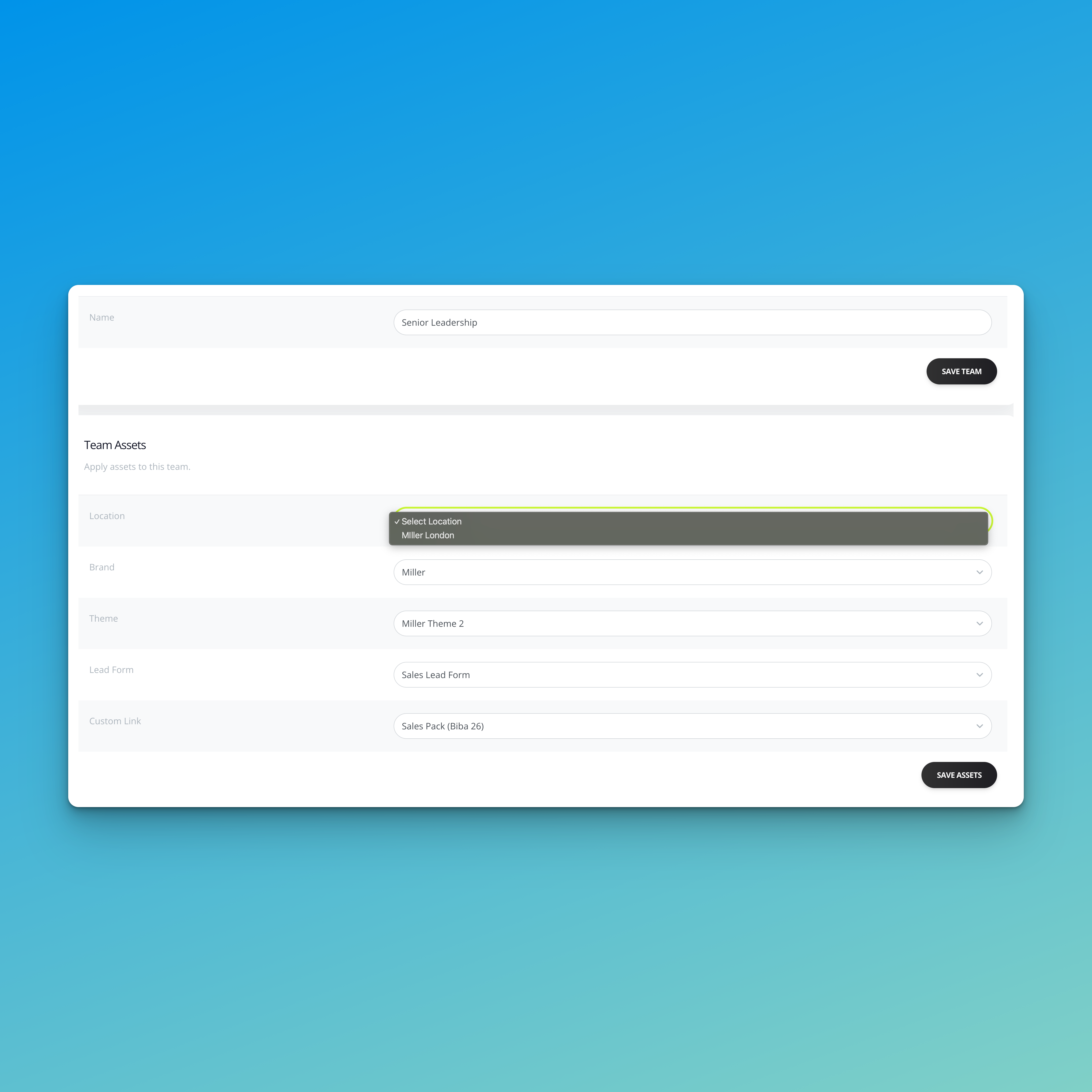
Assigning Assets to a Team
Once you’ve created your assets, you can assign them to a team. Any employee added to that team will automatically inherit these settings and display them on their digital business card.
You can assign:
- Brand name (company name shown on the card)
- Location
- Theme
- Lead forms (Pro users only)
- Custom link packs (Pro users only)
How Team Assets Work
When assets are assigned to a team:
- All employees in that team use the same branding and details
- Changes made to the team assets update all assigned employees automatically
How to Assign Assets to a Team
- Log in to your Kinect Card Enterprise portal.
- Go to Employees.
- Click Teams.
- Find the team you want to edit
(or open the team you’ve just created). - Use the dropdown menus to assign:
Brand
Location
Theme
Lead Form
Pro users: select a custom lead form
Free users: the default lead form is applied automatically
Custom Link Pack (Pro users only) - Save your changes.
What’s Next?
Once your team assets are assigned, you’re ready to create employees.
Any employee added to this team will automatically use the assigned assets.
💡 Need ispiration
Use teams for multiple brands and unique events
Managing Multiple Brands?
If you manage more than one brand, create a separate team for each brand. Assign each team its own brand name, theme, links, and assets to keep branding consistent across all employee cards.
For Conferencing & Events
Create a temporary team for events or conferences. Assign an event-specific theme and lead form to capture leads, then reassign employees back to their main team after the event.
Still need help?
Get Support
Send our team a message and we will respond within 1 business day. Our opening hours are Monday to Friday 9am - 5pm GMT. For out of hours support, please chat with our AI agent on our web chat facility.